Before you create a rule, set objects, fields, and value sets applicable to this account.
To create a new rule, follow the steps below:
-
Go to the Smart Routing tab.
-
Select the required flow.
-
Follow any of the steps below:
-
Select Add Rule in the rule menu.
-
Select +Add Rule below the list of existing rules.
-
-
Fill in the form to add a new rule as described in the table below.
-
Click Add Rule.
The form for creating a new rule consists of two panes:
-
A pane of general settings;
-
A pane of rule configuration to set conditions and an expected result of the check.
The List view and Code view buttons switch the mode of the rule configuration pane from interactive to coding, respectively. You can create and edit a rule in any mode. To edit the settings in the code view, click Unlock the code to edit.
Table: Rule parameters
|
Parameter |
Description |
|---|---|
|
General settings |
|
|
Rule name* |
A unique name of the rule. |
|
Description* |
A description of the rule and/ or an expected result of the check. |
|
Priority |
The ordinal number of the rule in a queue of rules. When processing a transaction, the Smart Routing service runs checking against flows and rules according to their priority set by the user. Only active flows and rules are applicable. When a rule is created, the next ordinal number applies by default. Further on, you can edit it. |
|
Active |
The state of the flow. Set as active when the toggle is on. When a rule is created, it is inactive by default. Further on, you can edit it. |
|
|
The toggle that activates the schedule for the rule. |
|
|
|
|
Time zone |
Time zone, according to which the dates and time of the rule activation/deactivation will be applied. By default, UTC + 00:00 |
|
Active from |
Date and time of the rule activation. |
|
Active to |
Date and time of the rule deactivation. |
|
Days and periods of week |
The drop-down list for selecting weekdays and periods of week (weekends or Monday to Friday) for when the rule needs to be activated. By default, every day. |
|
00:00 |
The field for setting up the time for rule activation on the selected day/period of week. |
|
23:59 |
The field for setting up the time for rule deactivation on the selected day/period of week. |
|
Preconditions block |
|
|
If the condition in the Preconditions block is not met, the check against the corresponding rule is not performed, thus decreasing the time required for Smart Routing checks. |
|
|
Field |
The field (field display name) for the precondition. |
|
Operator |
A logical operator. Possible values in the drop-down list depend on fields and the settings for an account. |
|
Value |
Field value for the precondition. See more details on values in the value description in the If block. |
|
If block |
|
|
Fx |
A checkbox to create a complex condition. |
|
Field |
The display name of the parameter used in checking a transaction against the rule. Possible values in the drop-down list depend on the field settings for an account. |
|
Operator |
Possible values in the drop-down list depend on fields and the settings for an account. |
|
Value |
A parameter value. Possible values in the drop-down list depend on fields and the settings for an account:
|
|
Period |
A calendar time period. Available for complex conditions only when Fx is selected. Possible values:
When referring to date and time, the service applies the time zone as indicated in the PSP settings in the system. |
|
Specify period |
A checkbox to set an arbitrary time period. Available for complex conditions only when Fx is selected. |
|
Value of period |
A number of time units when setting an arbitrary time period. Available for complex conditions only when Specify period is active. |
|
Unit |
A time unit when setting an arbitrary time period. Available for complex conditions only when Specify period is active. Possible values:
|
|
VfR |
A checkbox to use a value of the parameter from a transaction request as a value of the field. See the list of fields matching the system request parameters. |
|
Notify of the threshold breach (% оf limit) |
This option is displayed only if the complex condition is activated (Fx checkbox is selected). Selecting the Notify of the threshold breach checkbox displays fields for inputting the percent value. Once the specified percent value of the aggregated sum or count in the complex condition is reached, the system will send notifications to the following emails:
Please make sure you specify an email in the E-mail Smartrouting field in the back office: Admin > Settings. If the field is empty, the notifications won’t be sent.
The notification email will contain the UID of the transaction after which the specified % of limit was reached. The maximum number of the percent values that can be specified per rule is 5. |
|
Then block |
|
|
Then (for an action flow) |
A parameter to indicate an action that the payment processing system should do with a transaction. Possible values:
|
|
Then use (for an object flow) |
A parameter to indicate an object or a group of objects that should process a transaction. Possible actions:
Possible values in the drop-down list depend on the settings of objects for an account. Click +Add to include several objects to the list. |
|
*required. |
|

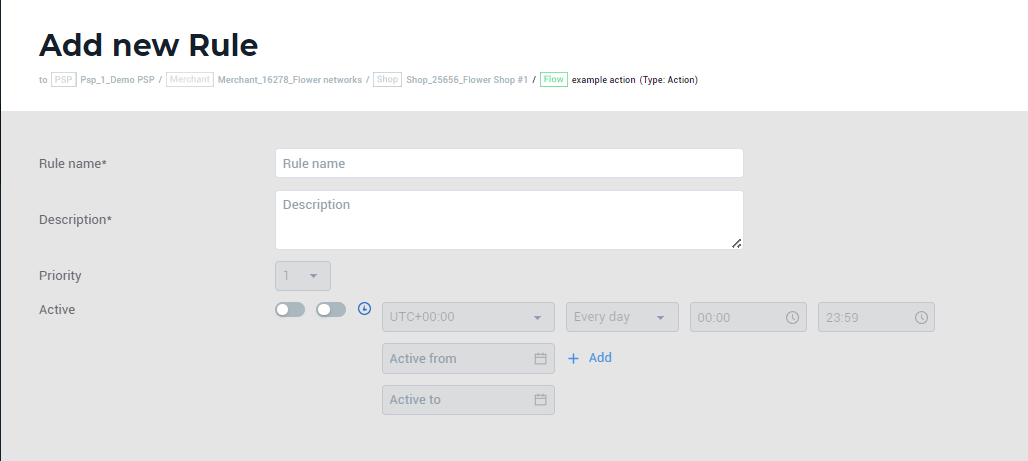
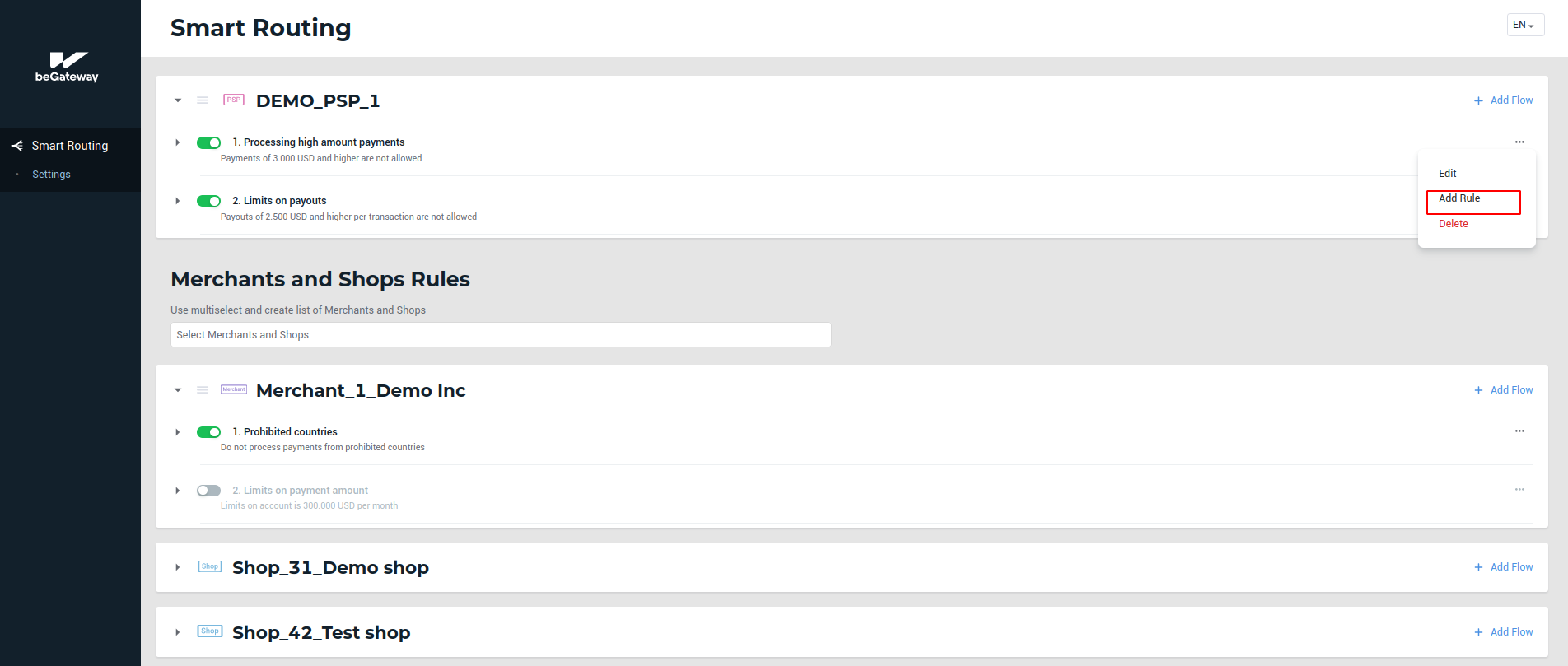 The Add Rule button in the flow menu
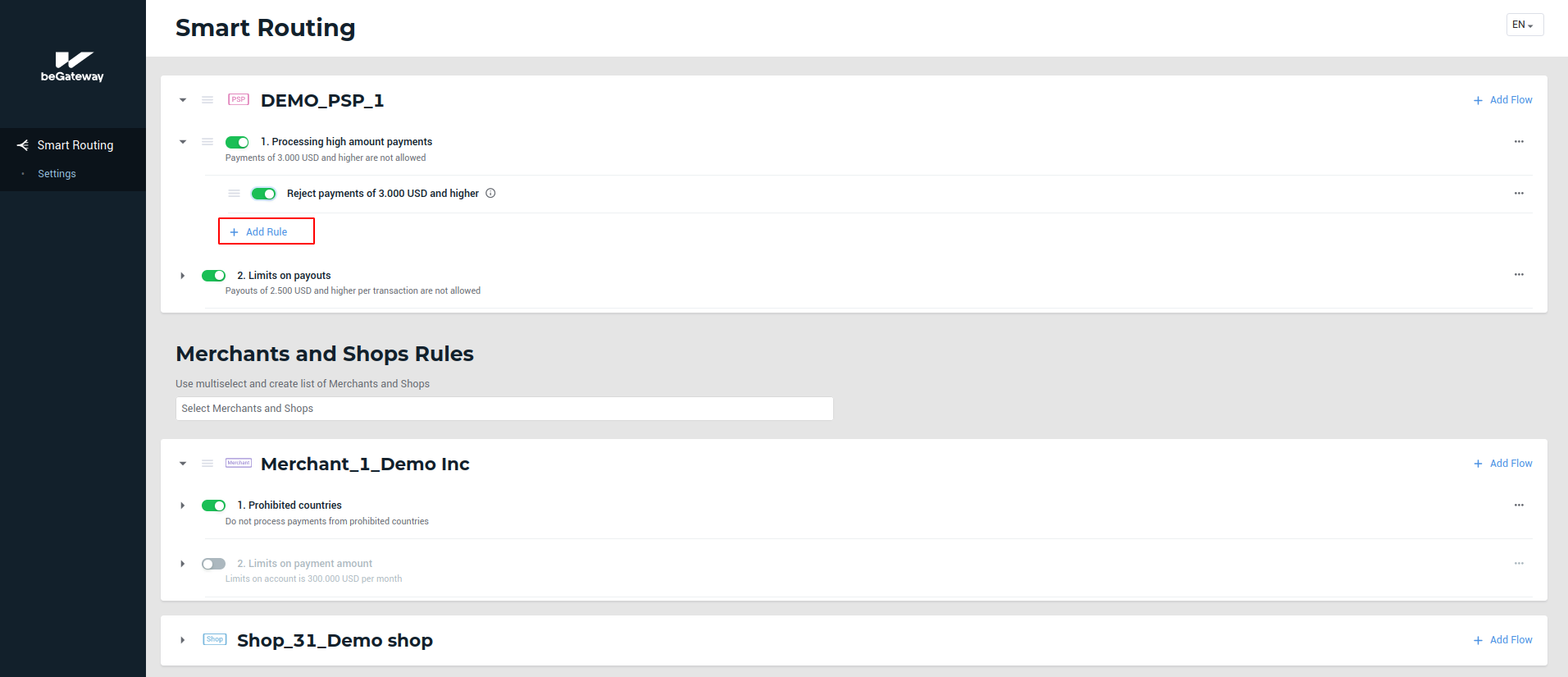 The +Add Rule button under the list of flow rules
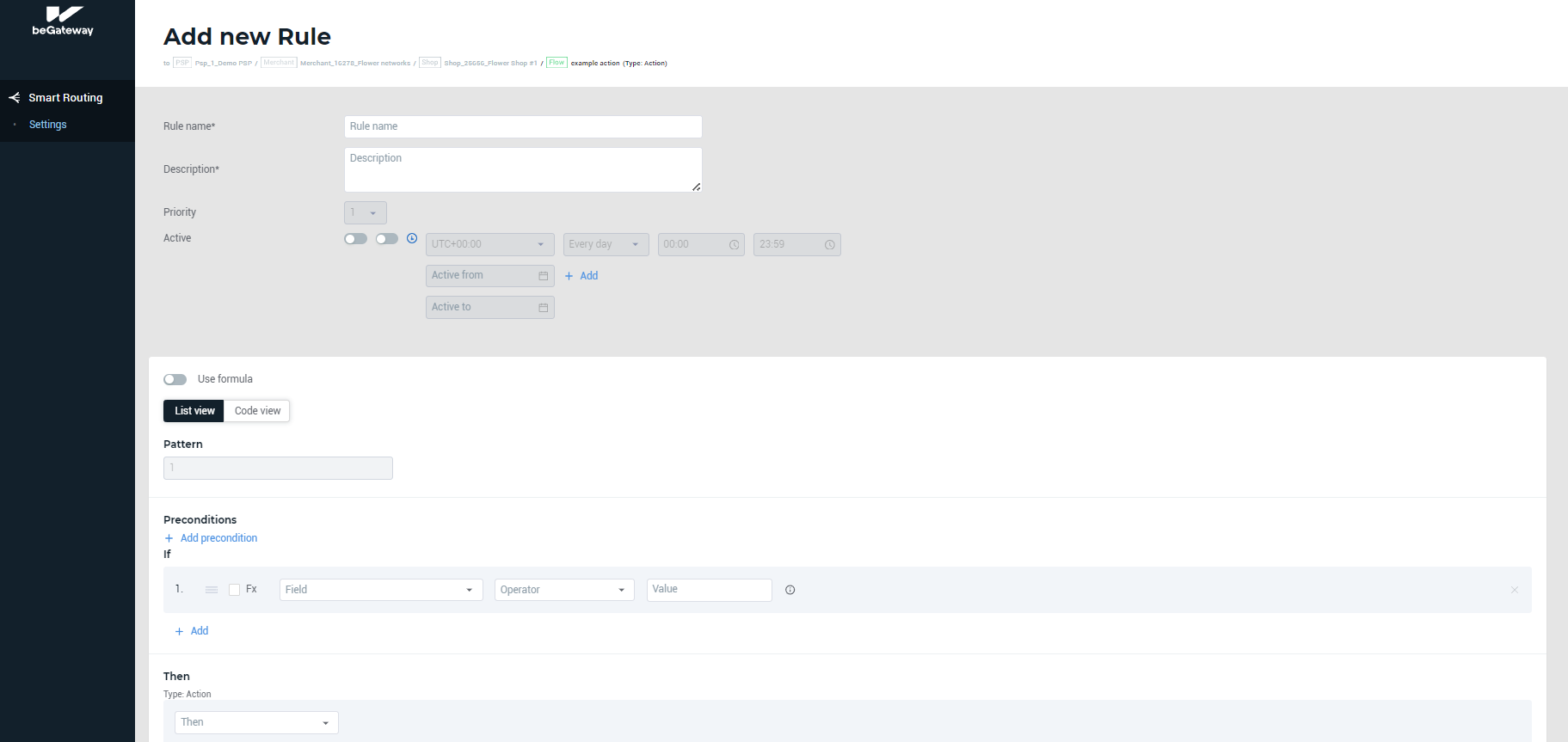 The Add new Rule page
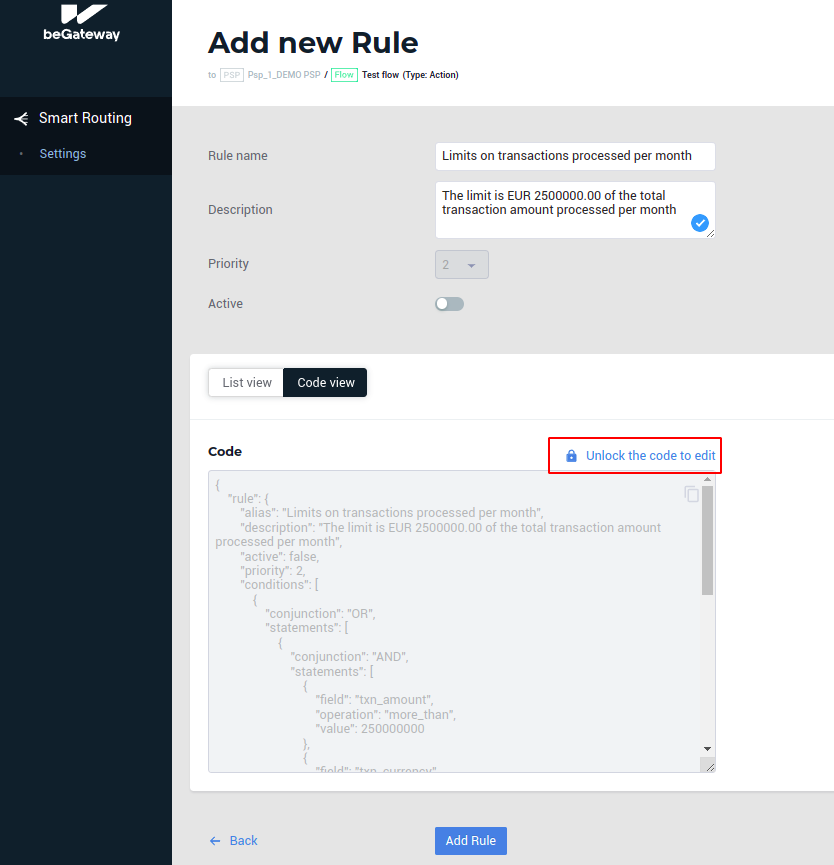 The Unlock the code to edit button upon a rule creation in the code view
Example 1: A rule to reject all transactions over USD 5000.00
The rule parameters can be set as shown in the image below:
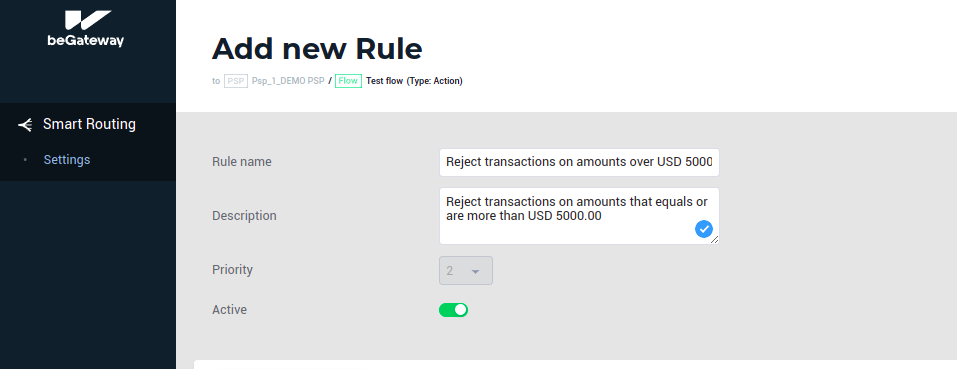
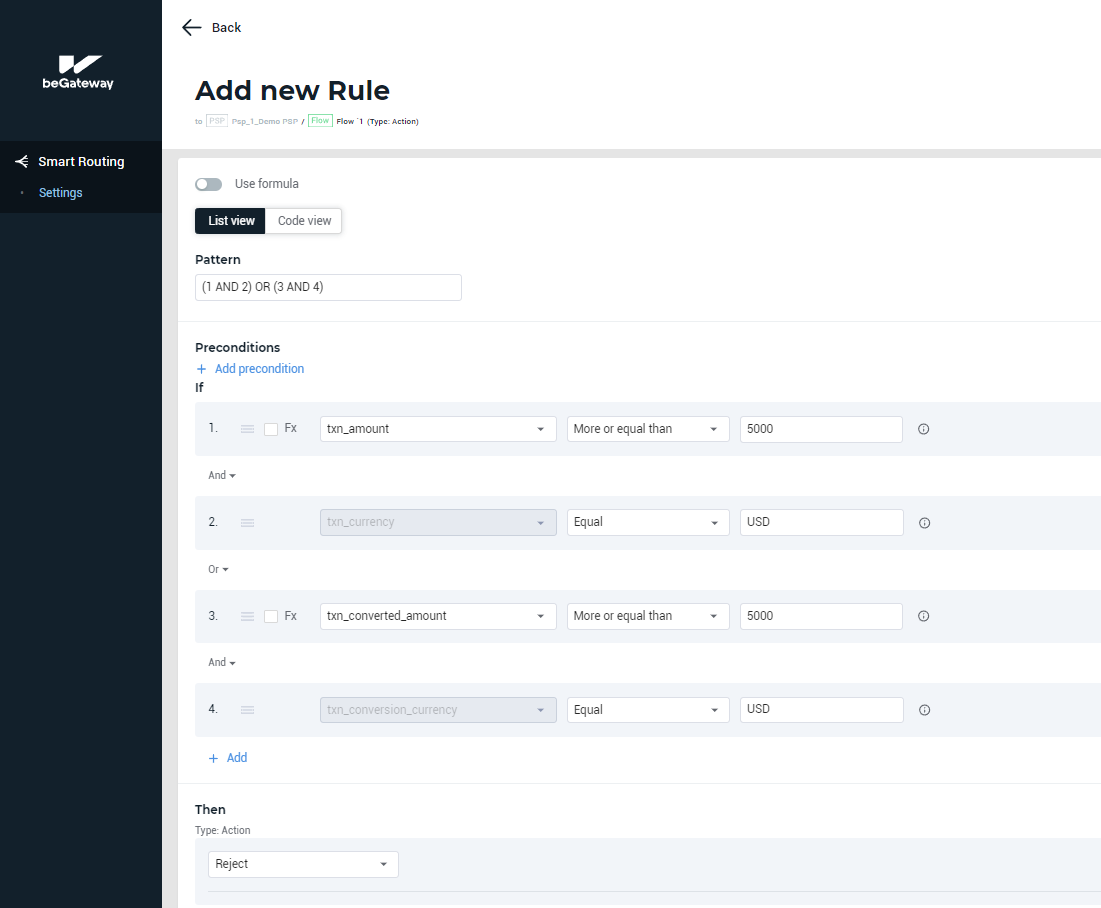 Rule condition settings for the sample rule
Example 2: A rule to reject Payment transactions, if the total processed amount per month is more than EUR 2500000. A rule with threshold breach notifications.
The rule parameters can be set as shown in the picture below:
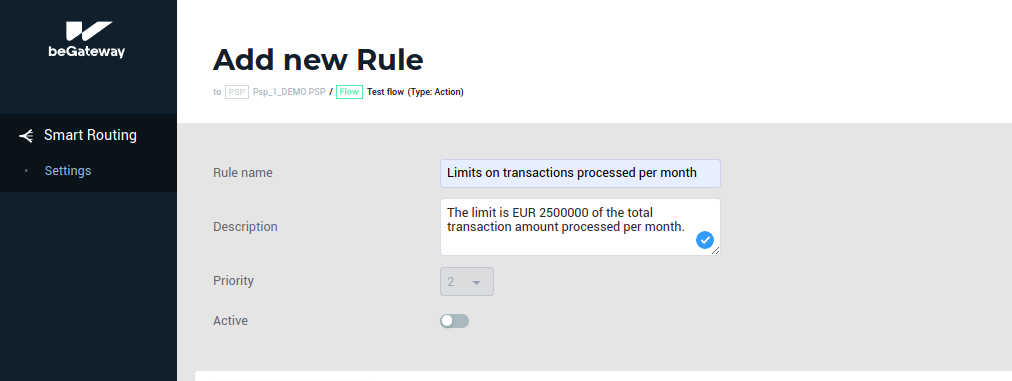 General settings for the sample rule
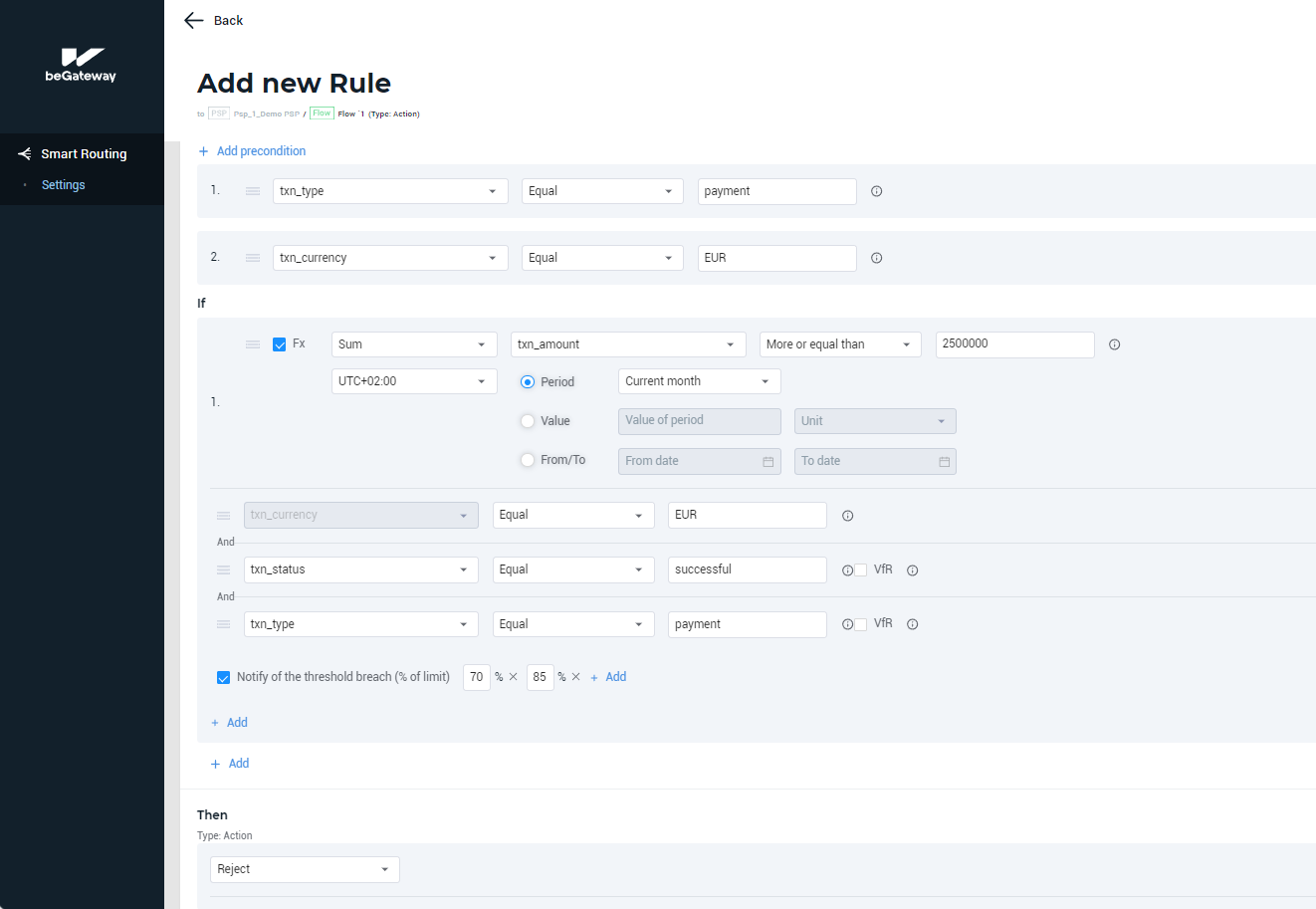 The sample rule condition settings