To review and configure the system settings of the payment service provider (PSP), go to the Admin > Settings menu tab.
The tab page shows the provider settings as described in the table below.
Table: System settings
|
Parameter |
Description |
Notes |
|---|---|---|
|
Your PSP ID |
The identifier of the payment service provider in the system. |
Used to authorize requests to the system API. |
|
Secret key |
The secret key of the payment service provider in the system. |
Used to authorize requests to the system API. |
|
Processor info |
||
|
Company name * |
The PSP company name. |
Shown to merchants and customers in the back office, documentation, transaction receipts, etc. |
|
Company site* |
The PSP company URL. |
Linked as a hyperlink to the PSP name. |
|
Company details |
Additional information about the company. |
|
|
Descriptor |
A text identifier and a billing descriptor of the payment service provider. |
Used in transaction receipts as an identifier of the payment service provider. |
|
E-mail* |
The e-mail address of the company. |
Shown as the value of the “From” field for emails sent to merchants. |
|
Support e-mail* |
The contact e-mail address of the company. |
Shown as the value of the “From” field for emails sent to customers. |
|
Tech support e-mail * |
The e-mail address of your Technical Support team. |
Used to send emails and notifications from your Technical Support team. |
|
Fraud manager e-mail |
The e-mail address of your Fraud Manager. |
Used to send notifications on fraudulent and risky transactions detected by Smart Routing service to your Fraud Manager. |
|
Phone |
The contact phone number of the PSP company. |
Shown in transaction receipts. |
|
PSP name |
The name of the PSP brand. |
Shown in the API documentation, in the back office, in transaction receipts, etc. |
|
UI default language |
The default language of the system user interface. Possible values:
|
|
|
Supported Languages |
Supported languages of the system user interface. Possible values:
|
|
|
Time zone |
The default time zone. |
Used to indicate the time and date of the processed transactions in the back office. |
|
Creation year |
The year that the PSP company was established at. |
|
|
Value-added tax, % |
The percentage of the applicable value-added tax. |
|
|
Person name for legal documents |
A person name to be indicated in the accounting documents. |
The indicated person must have the right to sign the accounting documents. |
|
Person title for legal documents |
The person title to be indicated in the accounting documents. |
The indicated person must have the right to sign the accounting documents. |
|
Logo |
The PSP logo. Formats: JPG, JPEG, PNG, GIF, SVG. Max width: 160px It is recommended to use a horizontal logo. Maximum values can be changed in parameters --header-logo-max-height and --header-logo-max-width respectively. More details on how to set the parameters can be found on Interface custom CSS page. |
Shown in the back office. To upload, click Choose file. Select the Remove logo check-box, to delete or update the uploaded logo. |
|
Widget logo |
The PSP logo. Formats: JPG, JPEG, PNG, GIF, SVG. It is recommended to use a horizontal logo. |
Shown on the PSP payment page. To upload, click Choose file. Select the Remove logo check-box, to delete or update the uploaded logo. |
|
Login logo |
The PSP logo. Formats: JPG, JPEG, PNG, GIF, SVG. Max height: 30px Max width: 160px It is recommended to use a horizontal logo. Maximum values can be changed in parameters --footer-logo-max-height and --footer-logo-max-width respectively. More details on how to set the parameters can be found on Interface custom CSS page. |
Shown on the back office login page. To upload, click Choose file. Select the Remove logo check-box, to delete or update the uploaded logo. |
|
PNG logo |
The PSP logo. Format: PNG Max height: 36px |
Shown on the receipts in PDF. |
|
Favicon |
The PSP logo in the ICO format. |
Shown on the browser tab of the PSP system page. To upload, click Choose file. |
|
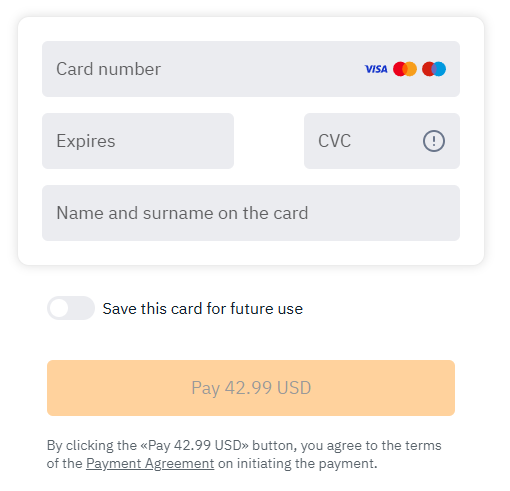
Use the Payment Initiation Agreement |
If the checkbox is selected, on the card details entry page of the payment widget, the following text is displayed for all shops of the PSP: By clicking the «Pay {amount} {currency}» button, you agree to the terms of the Payment Agreement on initiating the payment. The phrase Payment agreement links to the provided agreement URL/file. |
If the checkbox is selected, 2 additional fields are displayed:
If both fields are filled in, the URL is used.
|
|
Conversion alert emails |
Emails of the PSP employees. |
E-mail addresses of the users who should be notified of the conversion rate dropping, if the conversion service is enabled. You can enter up to 20 emails separated by a comma. |
|
Interface custom CSS |
The field to set the interface customized CSS parameters.
|
Click Load example below the Documentation custom CSS field to upload the default parameters and edit them to your preferences. If no custom CSS is applicable, please do not edit. |
|
Payment page custom CSS |
The field to set the payment page customized CSS parameters. |
|
|
Documentation custom CSS |
The field to set the documentation customized CSS parameters. |
|
|
Widget customization |
||
|
Color of buttons |
Color HEX-code for the widget and payment page buttons.
|
Used by default for all PSP merchants and shops. If needed, a merchant can apply his own widget customization settings. |
|
Background type |
Widget and payment page background style. Possible values:
|
Used by default for all PSP merchants and shops. If required, a merchant can apply his own widget customization settings. |
|
Merchant balance settings |
||
|
Enable balances |
The option to generate merchant balances. |
If the check-box is active, the system will generate merchant balances, which you can review and manage on the Balance tab page of the Accountant menu. |
|
Default currency * |
The default currency for balance generation. |
|
|
Apple Pay certificates |
||
|
Apple Pay merchant ID |
The Apple Pay merchant ID. |
Provided by Apple. |
|
Private key of Apple Pay merchant identity certificate |
The private key of Apple Pay Merchant Identity Certificate. |
Provided by Apple. |
|
Apple Pay merchant identity certificate for Apple Pay on the web |
The Apple Pay Merchant Identity Certificate for Apple Pay payments on the web. |
Provided by Apple. |
|
Private key of Apple Pay payment processing certificate |
The Private key of Apple Pay Payment Processing Certificate. |
Provided by Apple. |
|
Apple Pay payment processing certificate |
Apple Pay Payment Processing Certificate. |
Provided by Apple. |
|
Domain verification file |
The file used to verify your domain. |
Provided by Apple. |
|
Allow merchants to use the PSP certificate |
If checked, merchants will have an option to use an alternative procedure when connecting to Apple Pay Payment Processing Certificate without the need to submit their domain to Apple for verification. |
In this case PSP domain will be used for merchant transactions with widget/payment page. Pay attention that in this case, if a merchant violates Apple Pay policy, Apple may withdraw the PSP certificate. |
|
Google Pay settings |
||
|
Google Pay gateway ID |
Gateway ID. |
Provided by Google. |
|
Google Pay merchant ID |
Merchant ID. |
Provided by Google. |
|
Test private key |
The private key to authorize requests in the test mode. |
Provided by Google. |
|
Production private key |
The private key of the Google Pay certificate used for operation in the production environment. |
The corresponding public key is configured in the Google Pay & Wallet Console (or with the Google Pay API). According to Google’s information security requirements, the key pair is updated annually. After uploading a new public key to Google, the previous production private key must be specified in the Temporal private key field. During the transition period, both keys are supported. |
|
Temporal private key |
The private key of the Google Pay certificate that was previously used as the production private key. |
It is used during the transition period as a fallback key to decrypt Google Pay payment tokens in cases where decryption using the current production private key is unsuccessful. |
|
Samsung Pay settings |
||
|
Default ID |
PSP ID. |
Provided by Samsung. |
|
Samsung pay test key |
The private key to authorize requests in the test mode. |
Provided by Samsung. |
|
Samsung pay production key |
The private key to authorize requests in the production mode. |
Provided by Samsung. |
|
Search settings |
||
|
Use DWH |
If selected, DWH will be used for processing search queries. |
|
|
currencies |
The list of currencies that will be displayed on the top of the drop-down list in the currency search field when searching for transactions. |
|
|
*required |
||








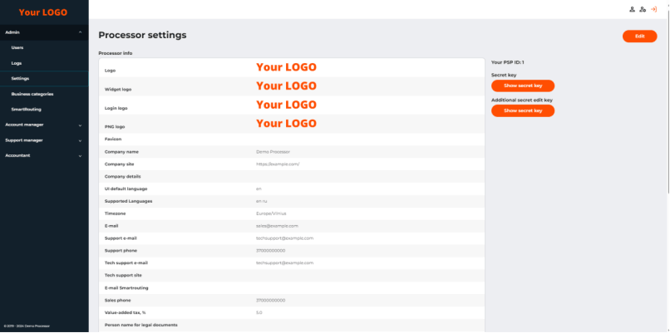
The Processor settings page (part 1 of 2)
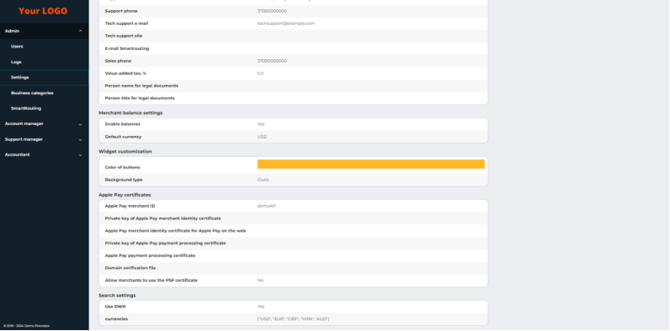
The Processor settings (part 2 of 2)