To find and review a subscription, follow the steps below:
1. Go to Support Manager > Subscriptions.
2. Indicate a shop name or a subscription name in the search box, and indicate other
parameters as described in the table below.
3. Click Find.
Table: Subscription search parameters
|
Parameter |
Description |
Notes |
|
Search box |
Shop ID, name or URL |
|
|
State |
The subscription status. Possible values:
|
|
| From | The start date of the search period by the creation date | |
| To | The end date of the search period by the creation date. |
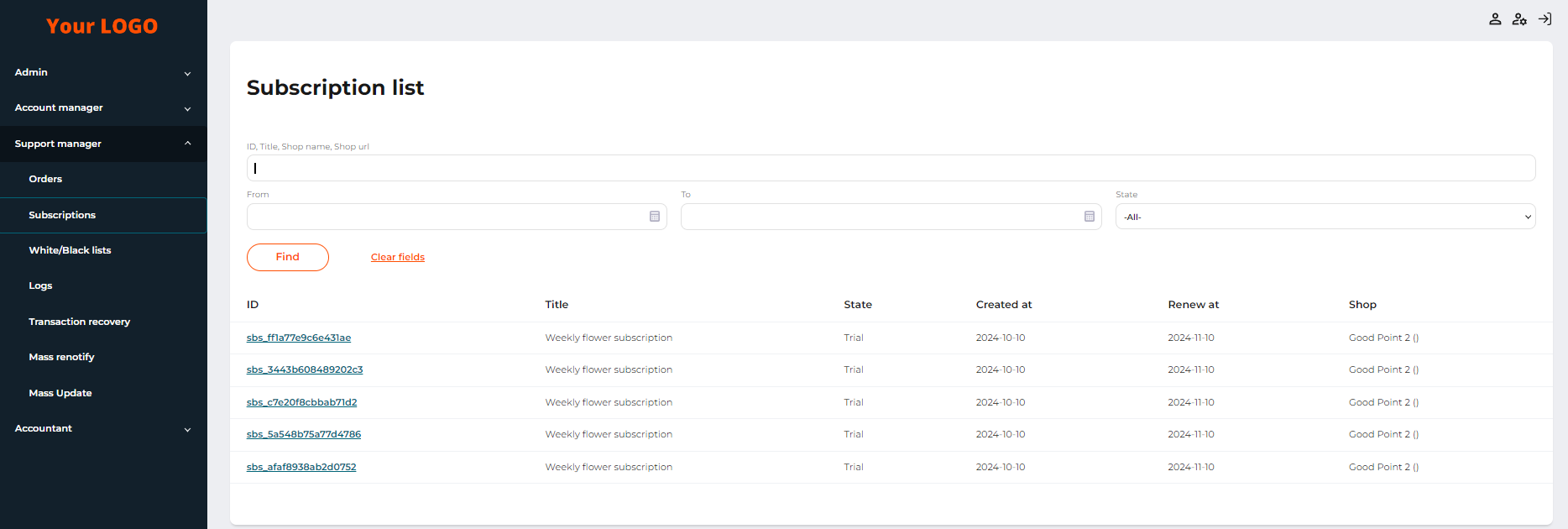
The Subscription tab page with a list of subscriptions
A user with the Support Manager role on the transaction details page also has the following additional options available:
- ID: a subscription ID;
- Title: the name of the subscription plan;
- State: a subscription status at the time of viewing
- Created at: the date that the subscription was created at;
- Renew at: the date of automatic renewal of the subscription;
- Shop: the name and URL of the shop for which the subscription was created.
By clicking on a subscription ID, you can see the details of the transactions made on that subscription. For more information, see View subscription details.
.