To add a new flow, follow the steps below:
-
Go to the Smart Routing tab.
-
Click +Add Flow for the required account.
-
Provide the required information as described in the table below.
-
Click Add Flow.
|
Parameter |
Description |
|---|---|
|
Flow name* |
A unique name of the flow. Maximum number of symbols: 100. |
|
Description* |
A description of the flow and/ or the expected result of the check. Maximum number of symbols: 250. |
|
Type |
|
|
Method |
A processing method of the flow. Possible values:
Available for object flows only. The random method is set by default. |
|
Priority |
The ordinal number of the flow in a queue of flows. When processing a transaction, the Smart Routing service runs checking against flows and rules according to their priority set by the user. Only active flows and rules are applicable. |
|
Active |
The state of the flow. Set as active when the toggle is on. |
|
*required |
|
Table: Flow settings
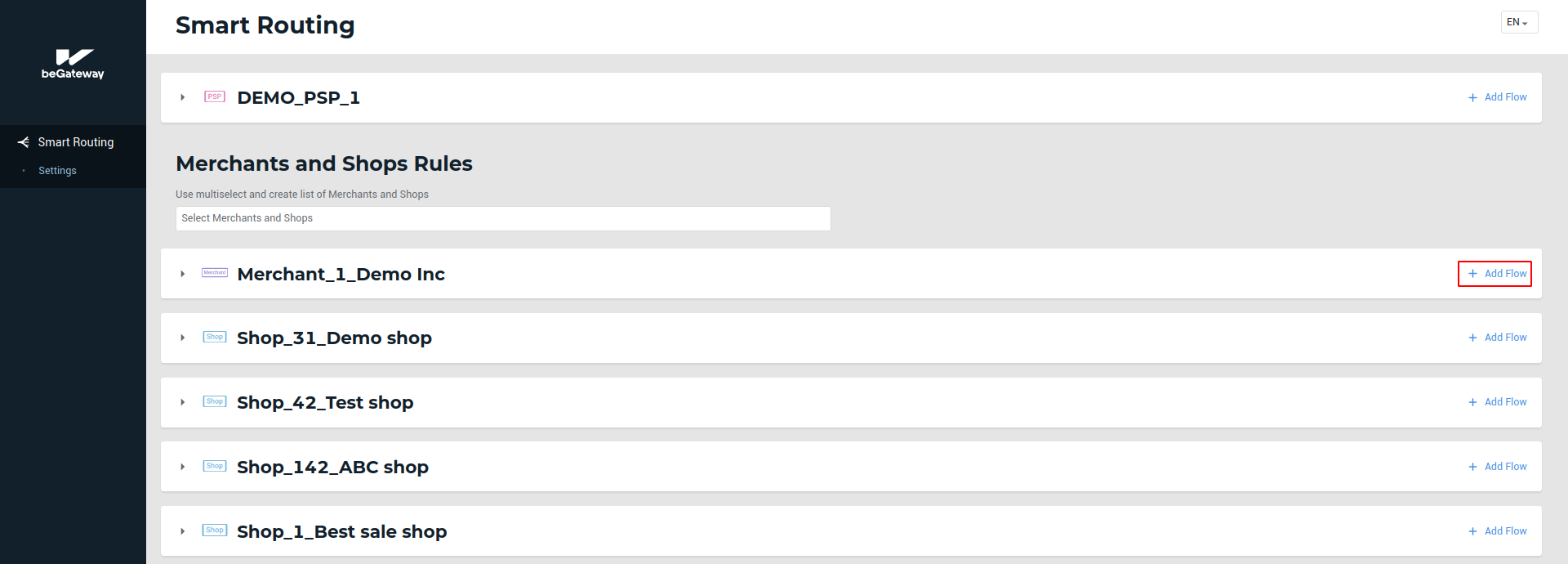 The “+Add Flow” button on the account panel
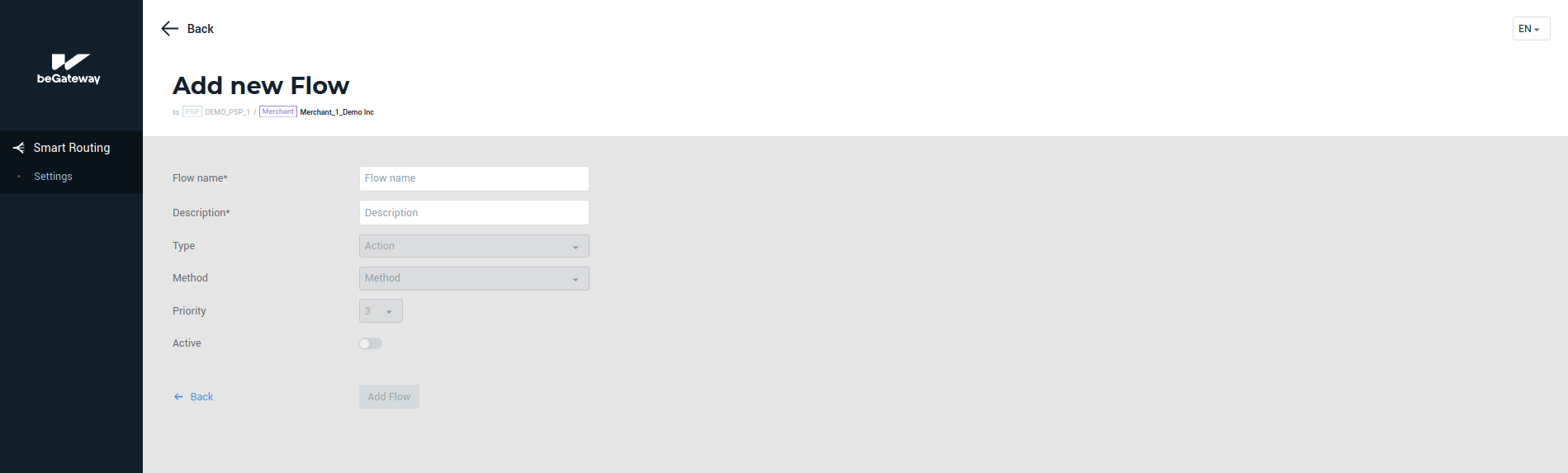 The form to add a new flow
Example: A new flow to process transaction with amounts over USD 5000.00 through a selected gateway
The flow parameters can be set as shown in the picture below.
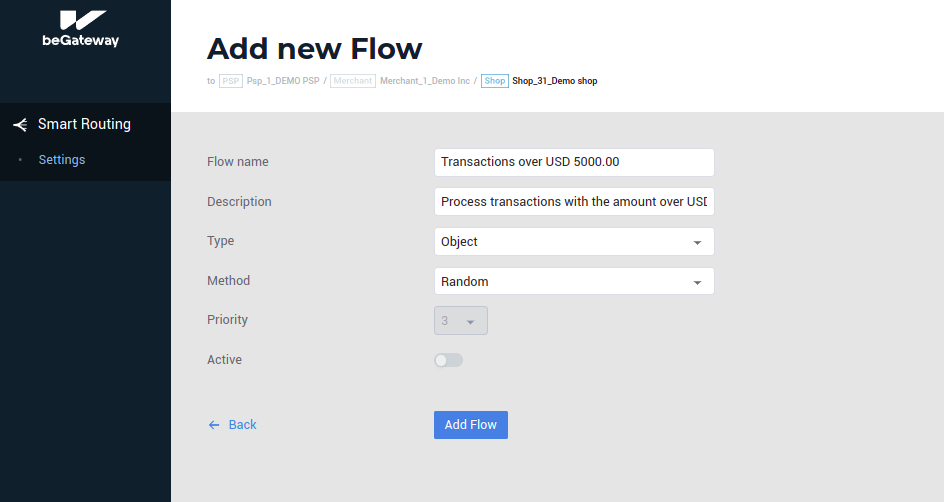 The sample flow parameters