To change user account settings, follow these steps:
-
Go to Admin > Users.
-
Follow one of the two options:
a. Click Edit in the row of the required user;
b. Click Show in the row of the required user, and then on the user information page, click Edit. -
On the page that opens, change the user data or activate the checkboxes as described in the table below.
-
Click Apply to save your changes or cancel them.
Table: User account parameters
Parameter
Description
Notes
Name*
A username.
Email*
A user’s email.
This email address is used as a login. The system will send an invitation email there for a user to finish the registration.
Personal data access
Personal data access permission Users without this permission have no access to the customers' personal data: first name, last name, middle name, address, phone number, email, gender, data of birth, ip, cardholder as well as cardholder equivalent for alternative payment methods (for example, the owner of the wallet). The data are either masked or not displayed.
Also, the corresponding search fields are not displayed for the users without the permission.
By default, the permission is turned off.
Roles
Roles assigned to a user.
At least one role should be selected.
Enabled
A user account activation status.
If an account is disabled, the user can not log into the back office.
*required
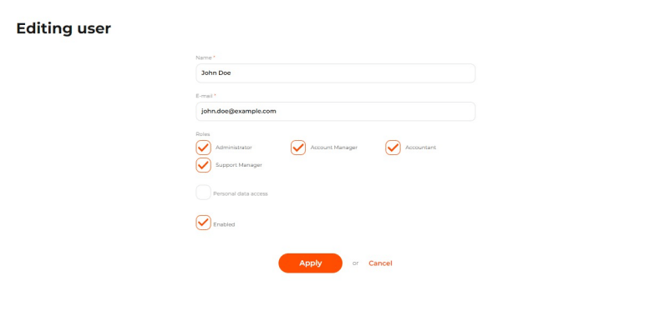
Editing user page