To connect a new payment gateway to a merchant's shop, follow these steps:
- Go to Account Manager >
- Go to the line of the shop in the If required, use Search for a merchant’s shop.
- Click View to go to the shop settings
- Go to the Gateways
- Select the acquirer whose gateway you want to connect to the shop from the drop-down list in the Select gateway For ease of searching, type the initial letter of the acquirer's name.
- Click Add
- Fill out the gateway connection form according to the description of the fields in the table
- Click Apply to save your changes or cancel
Table: Payment gateway parameters
|
Param eter |
Description |
Notes |
|
ID, login, keys* |
Credentials used to authorize transaction processing requests to a payment gateway. |
Credentials are unique for each gateway. Ask the acquirers for the applied credentials. |
|
Test mode |
Gateway test mode. |
|
|
Agree ment details |
Details of the acquiring agreement. |
|
|
Suppo rted brands |
Checkboxes to activate required payment brands. Possible values depend on the payment gateway configuration. |
You can see the enabled brands on the shop settings page. Even if Apple Pay, Google Pay, or Samsung Pay checkboxes are cleared, the transactions using the tokens by these token providers can still be processed in the system. This setting only controls whether the corresponding payment methods are displayed on the payment widget. |
|
Suppo rted curren cies * |
Checkboxes to activate required currencies used for payment processing. Possible values depend on the payment gateway configuration. |
You can see the enabled currencies on the shop settings page. |
|
Enable d |
The option to activate the payment gateway. |
By default, set enabled. The payment gateway is ready to process transaction requests. If not active, transactions will be declined. |
|
Gatew ay note |
Additional information about the payment gateway, for example the acquirer’s name. |
You can see this note in reports next to the payment gateway ID. |
|
Conne ction type |
Additional information about the payment gateway. |
Usually, it contains keywords that are used for data grouping in the accounting reports. |
|
Author ization autoco mplet e type |
The option to select a type of transaction that the system should automatically initialize for all those Authorization transactions which are not followed by a Void or a Capture within the timeframe specified under Autocomplete authorization in (seconds). |
|
|
Autoc omple te author ization in (secon ds) |
The option to indicate the number of seconds after which the system should autocomplete an Authorization if it has not been followed by a Void or a Capture. |
|
|
Agent |
The field for assigning an agent to the gateway.
The fields in the Agent rates tab will be pre-filled with the values set when adding/editing agents (Account manager > Agents). |
|
|
Fiscali ze throug h |
The option to choose an online fiscalization service to send out automatic tax notifications. |
|
|
*required |
||
 The form fields may vary depending on the gateway configuration.
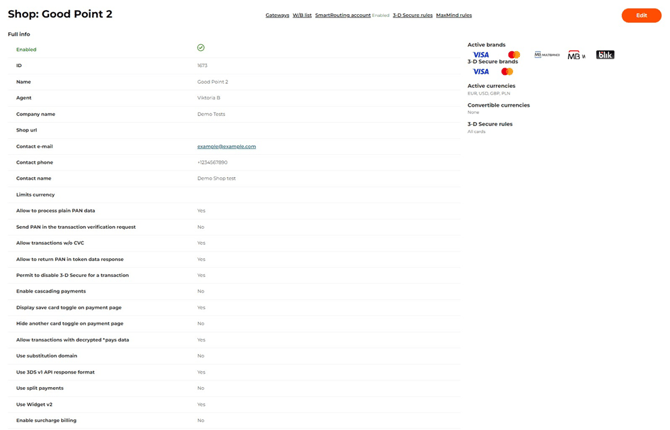 The Gateway tab on the shop setting page
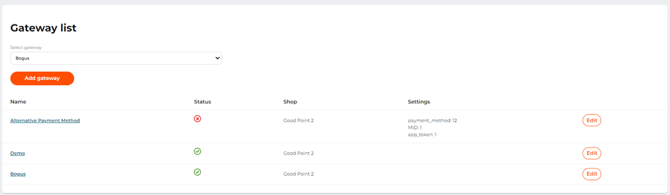 The Gateway tab on the shop setting page
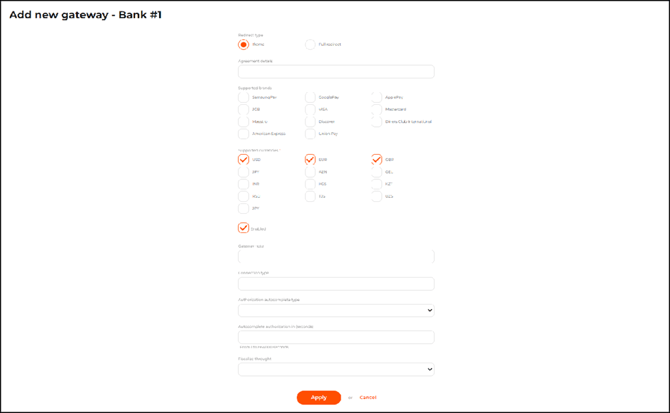 Add new gateway page