If you are a newly registered user, follow the steps below:
1. Follow the link in the invitation email that should be sent to you.
2. Log into the system using the credentials from the email.
3. Set a new password.
For other cases, to log into the back office, follow the steps below:
1. Enter your login and password.
2. Click Sign in.
3. If the two-factor authentication was enabled, enter 6 digits of the 2FA token.
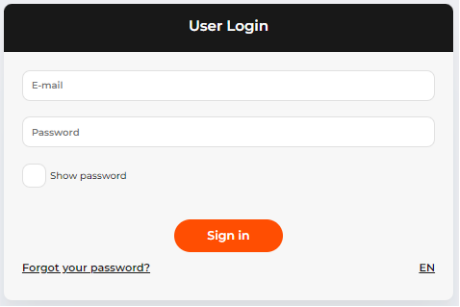
The sign-in page
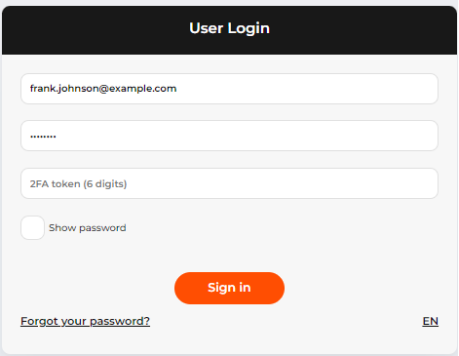
The sign-in page with the two-factor authorization
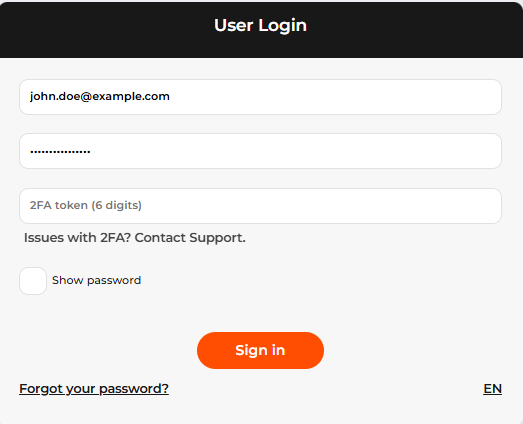 The sign-in page with the two-factor authentication
When you are entering your password, it is hidden under the password mask. To see the entered symbols, select the Show password check-box.
If you have entered a wrong password 5 or more times, the system blocks your user account and sends out a notification to your email address. Follow the email instruction to unlock your account.
Your password expires each 90 days. The system will also require a password update if you haven’t logged in for more than 30 days. The system will notify and guide you through a new password set-up.
The authorized user session lasts for 15 minutes. When the session ends, please sign in again. To close the active user session, click Sign out in the area of user account management.
Mandatory two-factor authentication
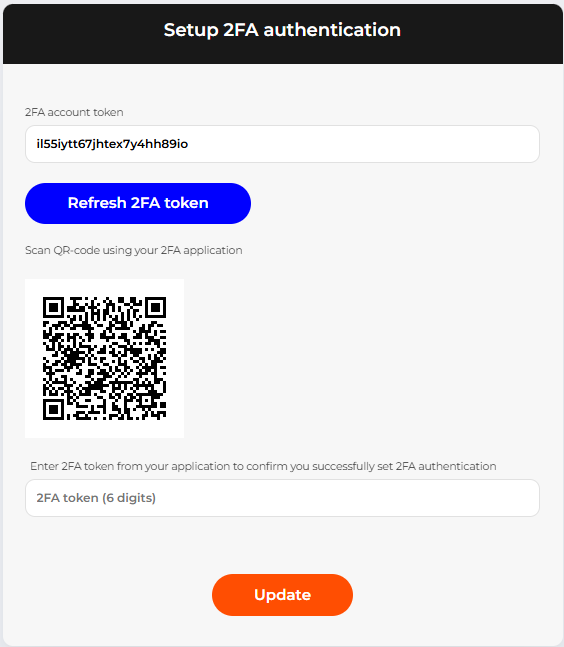
If mandatory two-factor authentication is activated for your account, once you enter the correct email and password, you will be required to add your account to the application for two-factor authentication. We recommend using Google Authenticator or Microsoft Authenticator apps. Follow the steps below:
-
download the authenticator app and open it;
-
click the button for adding a new account;
-
in the application, select Enter a setup key, fill in the required fields. In the Your key field insert the value from the 2FA account token field on the 2FA setup page in the backoffice. Alternatively, you can scan the QR-code on the 2FA setup page from your authenticator app;
-
now in the 2FA token (6 digits) field on the 2FA setup page in the backoffice, insert the code from the app;
-
click Update;
-
once the 2FA has been set up, you will be required to enter the 2FA token from the app on each login to the system.
If you experience any issues with your authenticator app (for example, if you no longer have access to your device), click Issues with 2FA? Contact Support. Your email app will open with the support email address in the To field and the subject line 2FA Access Issue already filled in. Describe the issue you are experiencing and send the email. After reviewing your request, a user with the Administrator will manually reset the two-factor authentication (2FA) settings for your account.