For each registered product registered, the system automatically generates a payment link that can be copied and sent to customers.
To get a payment link for a product, follow these steps:
- Go to the Products tab page.
- If there are many products, please specify the parameters for searching the product according to the description of the fields in the table below.
- Click Search. The page display panel will display a list of store products that match the search criteria.
- In the row of the desired product, click Payment links.
- Copy the relevant link.
For each product the system generates 2 payment links:
- Product payment link ( confirm_url ),
- Payment links for websites and mobile applications ( pay_url ).
If you notify your customers of order and payment details over email or a messenger, use a product payment link ( confirm_url ). The customer has to confirm the order before s/he is redirected to a secure page with a payment widget to complete a payment.
In other case, copy and integrate a payment link for websites and applications ( pay_url ). The link refers to a secure page with a payment widget, where the customer can enter payment data.
Table: Product search parameters
| Parameter | Description |
|---|---|
| ID, product name | A product ID or its description. |
| From | A start date of the product search period. |
| To | An end date of the product search period. |
| Shop | A shop for which the product is registered. Possible values: All: to show products of all shops; Shop name: to show products of the selected shop only. |
| Status | A product status. Possible values: All: to show products of all statuses; On offer: to show products that are available for sale; Out of stock: to show products out of stock; Outdated: to show products that can not be paid for anymore. |
| Show | Possible values: Live products: to show products created for sale only; Test products: to show products created for tests only. |
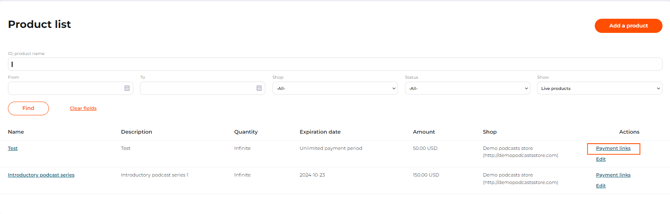
The ‘Payment links’ button in the Product list
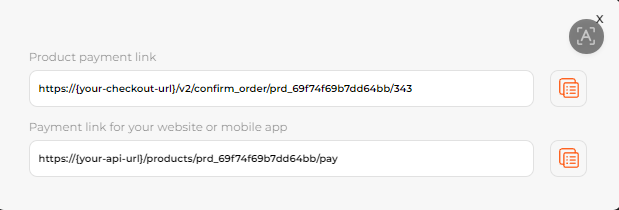
A pop-up window with payment links
Each time a customer goes to the payment page, 1 unit of the product is “reserved” for 15 minutes. This eliminates overbooking of the same product. If the payment failed or the user was inactive on the payment page for more than 15 minutes, the “reserved” product becomes available for purchase.