Skip to content
English
  • There are no suggestions because the search field is empty.

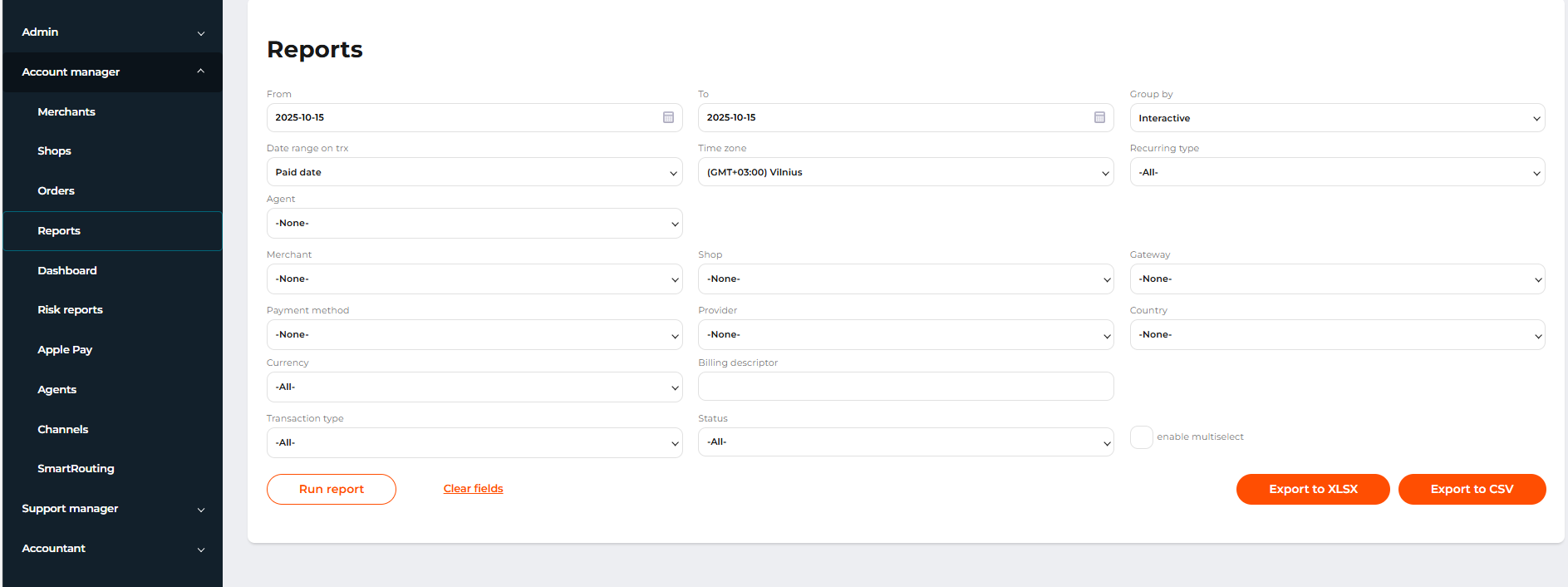
Get a transaction report

To create and view a statistical report, follow these steps:

  1. Go to Account Manager > Reports or Accountant > Reports.

  2. Set the parameters for generating the report, as described in the table below

  3. Click Run report.

Table: Parameters, filters and their possible values ​​used to generate a report

Parameter


Description


From

The start date of the reporting period. Current date is set by default.

To

The end date of the reporting period. Not earlier than a date in the From field. Current date is set by default.

Group by

Data grouping order.

Possible values:

  • Interactive: data are not aggregated automatically. Interactive report mode will be activated. Set by default.

  • Daily: data are aggregated automatically by each day of the reporting period.

  • Monthly: data are aggregated automatically by each month of the reporting period.

Date range on trx

Transaction date and time.

Possible values:

  • Creation date: date and time when a transaction is created in the system.

  • Paid date: date and time when a transaction is processed by an acquirer or a provider.

  • Settlement date: date and time when a transaction is cleared (transaction amount is settled to a merchant account).

Time zone

Relevant time zone for the report. After the time zone is specified, the system recalculates the transaction dates and time to the selected time zone.

Recurring type

A transaction recurring type.

Possible values:

  • All: to see transactions of all statuses. Set by default.

  • Not recurring transaction: to see transactions that are not recurrent.

  • Recurring transaction: to see all recurring transactions .

  • Initial recurring transaction: to see all initial payments for recurring transaction.

Agent

A merchant’s agent.

Possible values:

  • None: to see all transactions regardless of merchants' agents. Set by default.

  • All: to get a consolidated report on transactions of all merchants regardless of their agents.

  • Agent’s name: to get the report on transactions made in favor of the merchant managed by the selected agent.

Merchant

Merchant’s company name, as indicated upon merchant registration.

Possible values:

  • None: the system will generate a consolidated report on transactions of all registered merchants. Set by default.

  • All: the system will generate a report with data grouped by each merchant.

  • Company name: the system will generate a report on transactions processed in favor of this merchant.

Shop

A name of the merchant’s shop, as indicated when a merchant shop was added.

Possible values:

  • None: the system will generate a consolidated report on transactions of all registered merchant shops. Set by default.

  • All: the system will generate a report with data grouped by each shop.

  • Merchant shop name: The system will generate a report on transactions initiated through this shop. Depend on the value in the Merchant field.

Gateway

Payment gateway, processor, or acquirer.

Possible values:

  • None: the system will generate a consolidated report on transactions processed by all payment gateways, providers, or acquirers. Set by default.

  • All: the system will generate a report with data grouped by each payment gateway, provider, or acquirer.

  • Payment gateway, provider or acquiring bank name: The system will generate a report on transactions processed by this payment gateway, provider, or acquirer. Depend on the value in the Merchant and Shop fields.

Payment method

Payment method used to make a transaction.

Possible values:

  • None: the system will generate a consolidated report on transactions initiated by all payment methods. Set by default.

  • All: the system will generate a report with data grouped by each payment method.

  • Payment method name or brand: the system will generate a report on transactions initiated by this payment method. Depend on the value in the Merchant, Shop and Gateway fields.

Provider

Provider, the source of the payment token used for the transaction.

Possible values:

  • None: the system will generate a consolidated report on all transactions processed with or without using a payment token from Apple Pay, Google Pay or Samsung Pay token providers.

  • All: the system will generate a report on transactions grouped by the payment token provider.

  • Not applicable: the system will generate a report on the transactions that were processed without the tokens of the payment token providers. (credit_card.token_provider=null)

  • {Payment token provider name}: the system will generate a report on transactions processed using the token of the specified payment token providers (Apple Pay, Google Pay or Samsung Pay).

Country

Country of a customer.

Possible values:

  • None: the system will generate a consolidated report on transactions initiated from all countries. Set by default.

  • All: the system will generate a report with data grouped by each country.

  • EU: The system will generate a report with data grouped by each country of the European Union.

  • Non-EU: The system will generate a report with data grouped by each country outside the European Union.

Currency

Transaction currency.

Possible values:

  • All: the system will generate a report with data grouped by each currency. Set by default.

  • Currency out of the list: the system will generate a report on transactions processed in this currency.

  • All in EUR: the system will generate a report with amounts converted to EUR at the exchange rate set by Open Exchange.

  • All in USD: The system will generate a report with amounts converted to USD at the exchange rate set by Open Exchange.

  • All in GBP: the system will generate a report with amounts converted to GBP at the exchange rate set by Open Exchange.

  • All in RUB: the system will generate a report with amounts converted to RUB at the exchange rate set by Open Exchange.

Billing descriptor

The transaction billing descriptor, the text to be displayed on the bank statement. The search supports exact match only.

Transaction type

Transaction type as defined by the system.

Possible values:

  • All: The system will generate a report with data grouped by each transaction type. Set by default.

  • Transaction type out of the list: the system will generate a report on transactions of the selected transaction type.

Status

Transaction status as defined by the system.

Possible values:

  • All: the system will generate a report with data grouped by each transaction status. Set by default.

  • Successful: the system will generate a report only on successful transactions.

  • Failed: the system will generate a report only on failed transactions.

The Reports tab

The Reports tab

If the Enable multiselect check-box is activated, you can choose several values in the Merchant, Shop, Gateway, and Transaction type fields. A field hint will indicate the number of selected values.
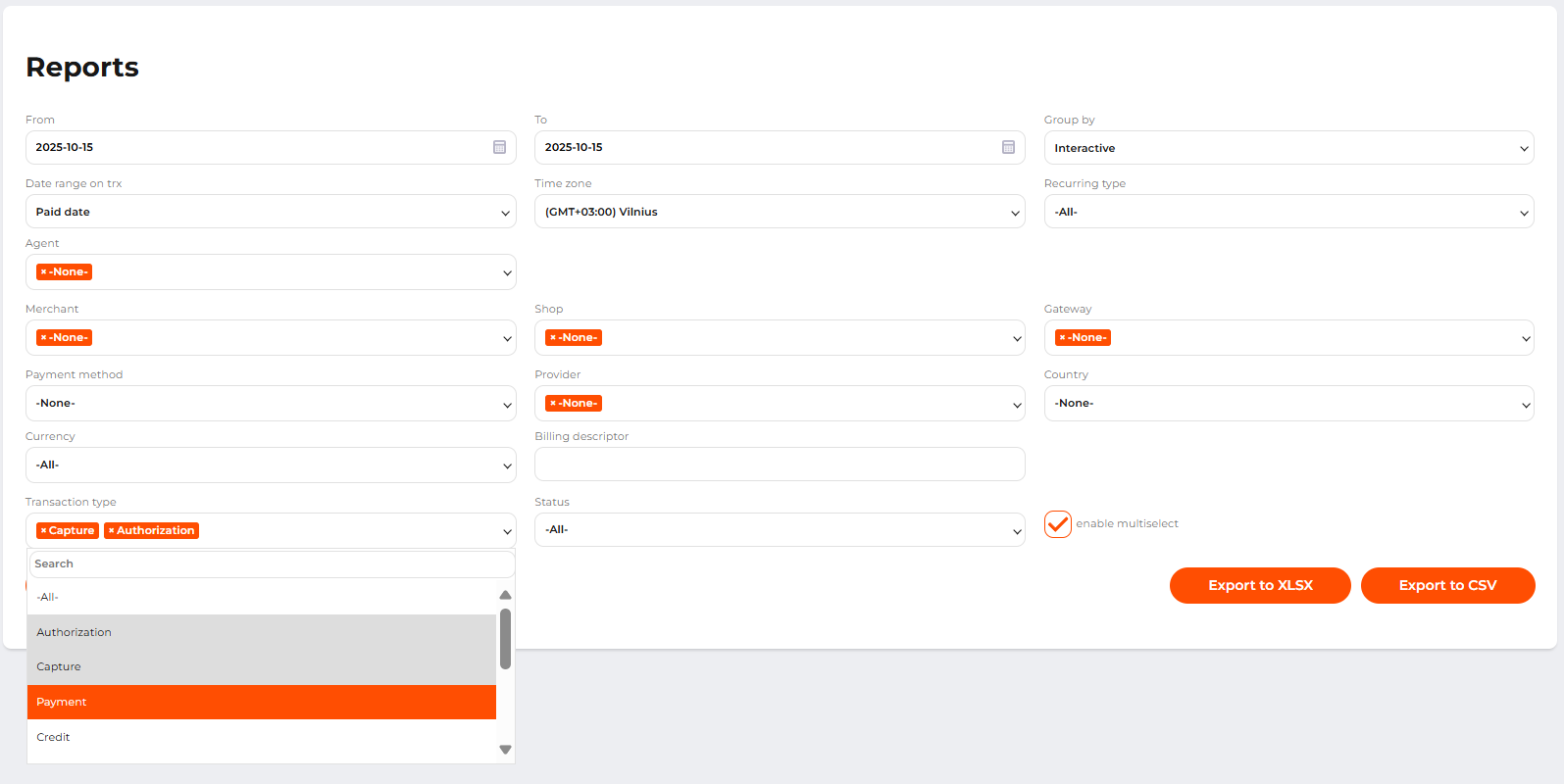
The Reports tab with the enabled multiselect option

The Reports tab with the enabled multiselect option
 

After generating a report on the specified parameters, the system will display information in a tabular form indicating the number and total amount of transactions matching the search parameters. For a report grouped daily or monthly, a time period will also be specified.

If the Group by parameter is set to Interactive, the report is displayed in the interactive mode.

The interactive mode allows users:

  • to search a value across the report outcome instantly in the Search field;

  • to see the overall number of reported transactions in the Total field at the bottom of the report table;

  • to sort the data instantly on one or on a few columns of the report table.

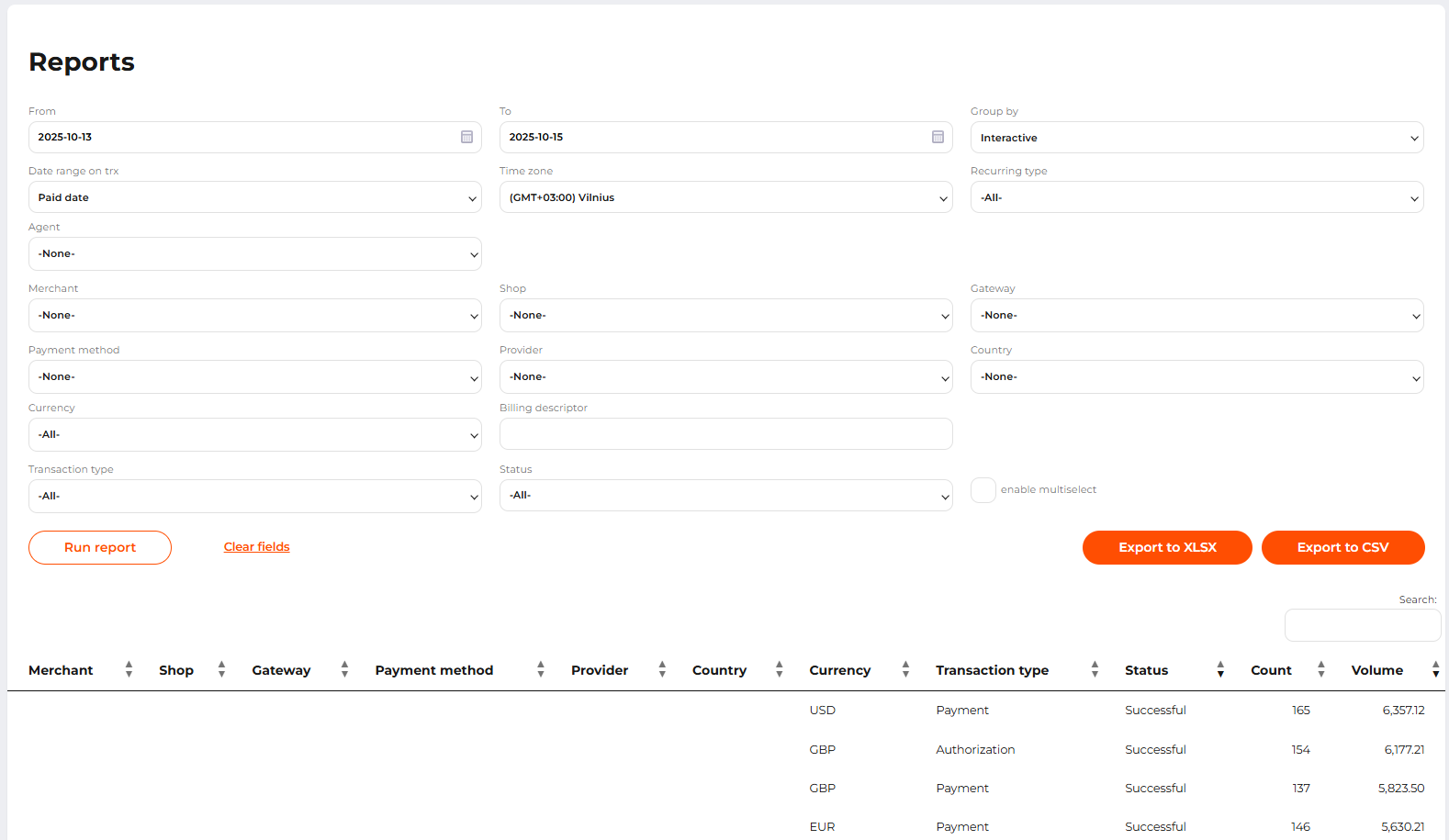
To sort the output data on a column, use the arrows next to the column name to arrange the data in the ascending or the descending order. Multi-column ordering can be activated by Shift + click on columns. The clicked column is added as a secondary, tertiary, etc ordering column.
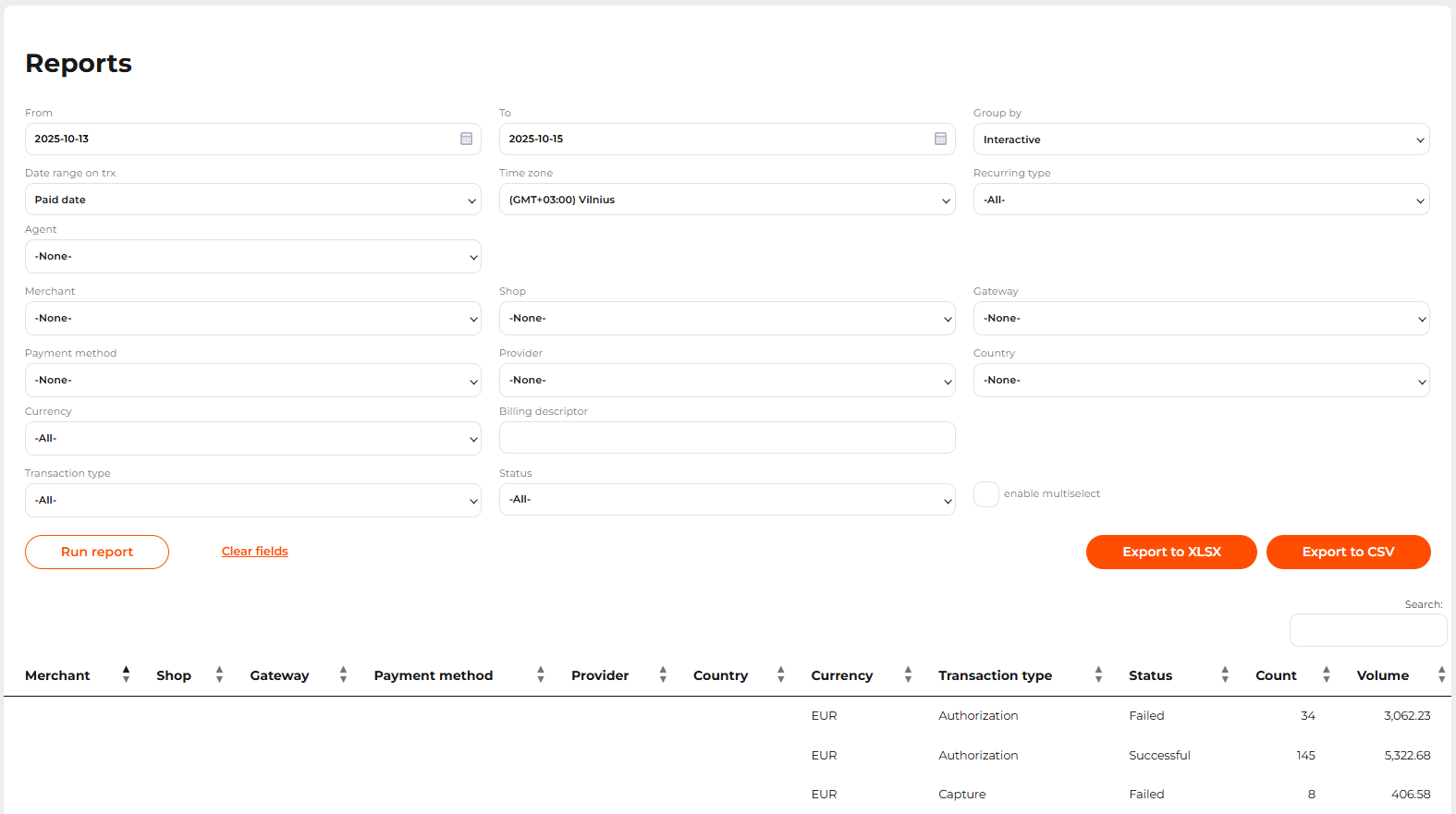
The report in the interactive mode

The report in the interactive mode
 
 
 The report with the interactive two-level sorting by Status and Volume
 
 
The report with the interactive two-level sorting by Status and Volume