For each registered plan, the system automatically generates a link that can be copied and sent to customers.
To get a payment link to pay for the plan, follow these steps:
- Go to the Plans tab page.
- If you have many plans, specify the parameters for searching for a plan according to the description of the fields in the table below.
- Click Find. The page display panel will display a list of shop plans that match the search criteria.
- In the row of the desired plan, click Payment link.
- Copy the link to the payment page.
A link to pay for the plan can be sent to the payer or embedded into your website. When a customer makes the first payment, the system will automatically save the card details for subsequent charges. No additional actions are required to save customer card data.
Table: Plan search parameters
| Parameter | Description |
|---|---|
| ID, Title, Shop name, Shop URL | A field for specifying the identification number of the plan, its name, or details of the shop for which the plan is registered. |
| From | An end date of the plan search period based on the plan creation date. |
| To | An end date of the product search period on the plan creation date. |
| Show | Possible values: Live plans: to show plans created for sale only; Test plans: to show plans created for tests only. |
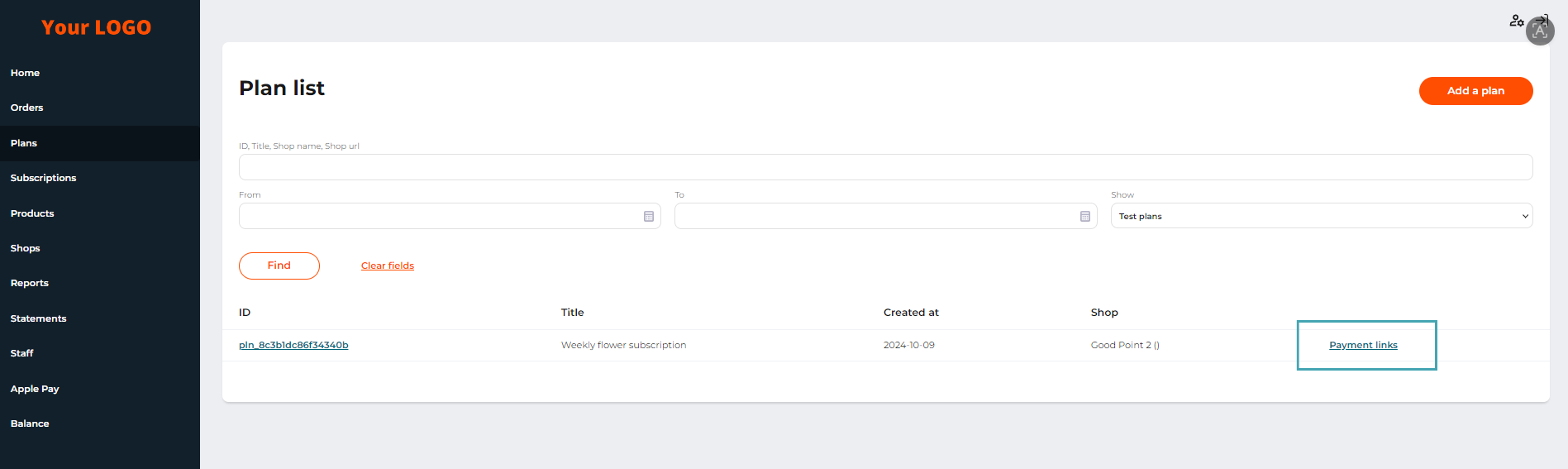
The ‘Payment links’ button in the plans list
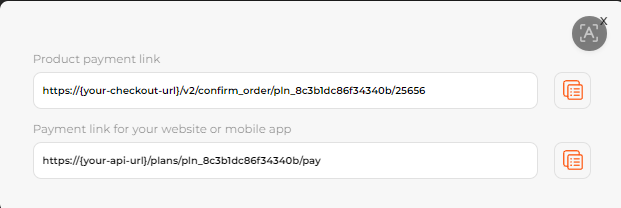
A window with payment links for the plan