Create a product
To register a product or service that your customers will pay for via a payment link, follow these steps:
- Go to the Products tab.
- Click Add a product.
- Fill out the product form, as described in the table below.
- Click Apply to save the product.
The added product will appear in the product list.
Table: Product parameters
| Parameter | Description | Notes |
|---|---|---|
| Name | The product name. | |
| Description | A brief description of the product. | |
| Currency | A payment currency. | |
| Amount | A product price in the payment currency. | |
| Quantity | Number of product units available. Specify if the Infinite option is inactive. | Each time a customer goes to the payment page, 1 unit of the product is “reserved” for 15 minutes. This eliminates overbooking of the same product. If the payment failed or the user was inactive on the payment page for more than 15 minutes, the “reserved” product becomes available for purchase. |
| Infinite | Indicates that the product quantity is unlimited. | |
| Visible fields | Specify the fields to be filled in by the payer when making the payment. | |
| Test | Check this box if you are creating a test product. | Transactions for test products are not displayed in reports. |
| Unlimited payment period | Check this box if you don't have a time limit for paying for the product. | If there is a time limit, fill in the Expiration date field. |
| Expiration date | Allows you to limit the payment period to a certain date. | The field is hidden, if you check the box Unlimited payment period. |
| URL where to return a customer if a payment is success | Specify the URL where to return a customer if a payment is successful. | You can choose to redirect the buyer to the main page of your site, or give a link to the product, or any other link. If the URL is not indicated, the system will redirect customers to the main page of your website. |
| URL where to return a customer if a payment is failed | Specify the URL to redirect the buyer to after a failed payment. | You can choose to redirect the buyer to the main page of your site, or give a link to the product, or any other link. If the URL is not indicated, the system will redirect customers to the main page of your website. |
| Shop | A name of the shop, for which the product is created. | The field is shown, if you have several registered shops. |
| Language | Specify the language of the payment page. | |
| Transaction type | Set the transaction type. Possible values: Payment: immediate debiting. Authorization: blocking of funds on the customer's account with subsequent capture or void. | If the total amount for the product may change, we recommend using the Authorization transaction. |
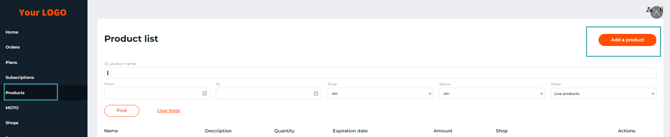 The ‘Add a product’ button on the ‘Products’ tab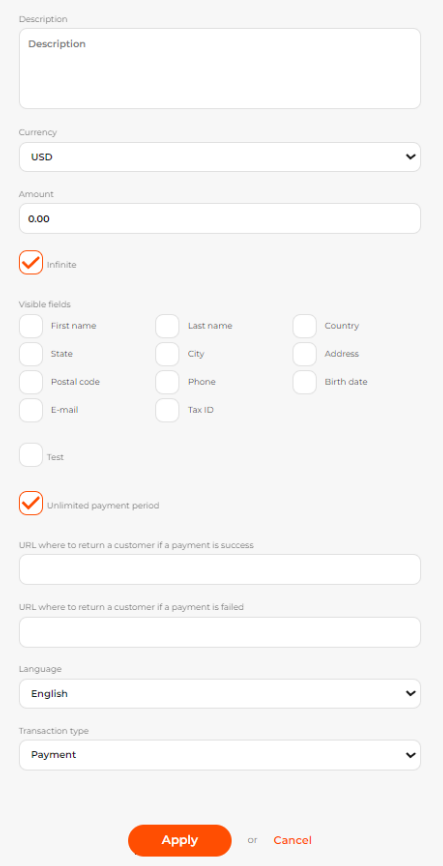
The 'Add a product' tab
If you don't see your new product on the list, make sure that the Show filter value at the top of the page matches the type of Subscription you created.